
Android how-to pages live or die on one visual promise: the phone in step 1 is still the phone in step 6. A recovery guide, an unlock walkthrough, or a data-transfer article often starts from one real screenshot and then needs cleaner crops, a darker background, or a short motion clip for social. An Image to Image pass can produce those extras. It can also invent a second bezel, a new icon row, or a status bar that never existed on the source device.
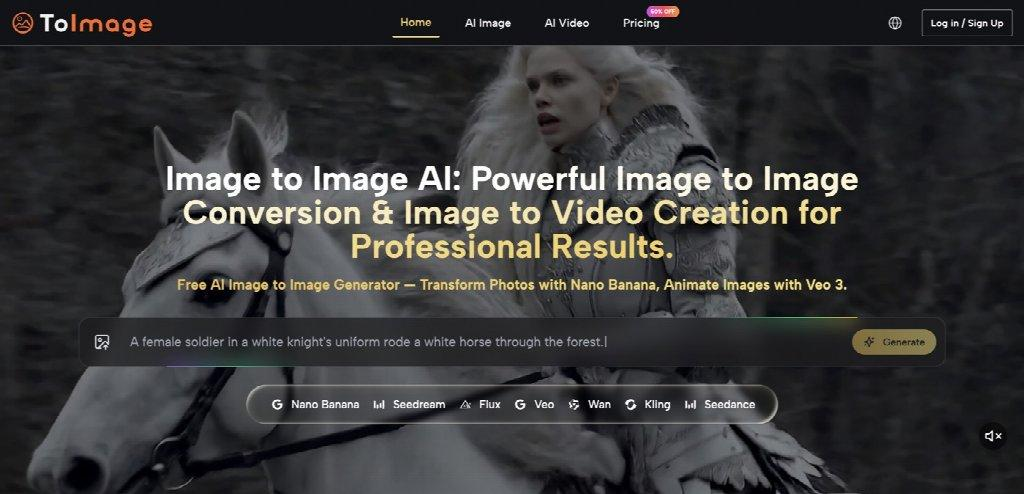
The useful measure is not how many pretty frames a model returns. It is how many frames a reviewer can place next to the original capture without changing what the reader thinks the software will show. ToImage AI supports image transformation, reference-based editing, model comparison, and image-to-video. Those routes help only after the writer freezes the device identity that the tutorial is allowed to claim.
Lock The Device Before Asking For A Cleaner Frame
A tutorial screenshot is a claim about a specific Android surface. The bezel shape, camera island, navigation style, and even the time on the status bar tell a reader which family of phones the steps apply to. When a generated variant keeps the UI copy but swaps the hardware, the article starts describing a device the writer never opened.
Write a short identity strip for the source capture: model family, button layout, navigation mode, and the one UI region the article is actually teaching. That strip is the acceptance rule. A brighter wallpaper is usually harmless. A changed punch-hole, a different keyboard, or a new Settings label is not a style choice.
Name The Zone The Model May Touch
Flux Kontext is presented for context-aware edits and object-level replacement. That is the right tool when the job is “remove the coffee mug from the desk and keep every pixel of the phone.” It is the wrong tool when the prompt says “make the screenshot look more premium.” The second instruction invites a new chassis.
Keep the allowed change in one sentence. “Crop tighter and darken the table” can be checked. “Make it look like a flagship review” cannot. If the preview invents a second camera or a new gesture bar, discard that draft before writing the next caption.
Different Placements Need Different Fail Rules
The same source file fails in different ways depending on where it will sit. A hero on a recovery landing page needs a readable device and space for a headline. A square social tile will crop the bezel. A short clip will show whether the icons stay put across time. Do not use one vague brief such as “looks official” for all three.
| Placement | Typical fail | Check before publish |
| Guide hero | Background implies a different desk or brand kit | Compare bezel, ports, and headline clearance with the source |
| Step thumbnail | Crop hides the menu the paragraph names | Read the caption against the visible labels |
| Carousel of steps | The phone identity drifts between cards | Line the cards up and scan bezels and icon rows |
| Short motion cut | Mid-clip UI or generated audio adds a false tap | Mute once, then scrub the middle frames |
The table exists so a review does not collapse into taste. A designer may prefer the glossier export. The question is whether a reader could still follow the written tap path on the device shown.
Put The Rule In The File Handoff
Every approved still should travel with the source capture, the intended placement, and the one change that was allowed. That stops a social editor from treating a mood crop as a new official screenshot. The note is small. It is what keeps a later rewrite from publishing a phone the original writer never held.
Pick The Model From The Failure, Not The Name
ToImage AI lets a team compare several image models in one workspace. That is useful when the job is still undecided: a surgical cleanup, a set of references, or a broader restyle. Start from the failure, not from the model that sounds newest.
Nano Banana accepts multiple reference images, which helps when a guide needs the same phone, the same cable, and the same desk to stay related. Nano Banana 2 adds selectable 1K, 2K, and 4K output and up to four results per request. Extra resolution does not repair a warped navigation bar. If four results all invent a new icon, the brief is wrong.
Keep The Software Claim As Narrow As The Screenshot
A recovery or unlock article often promises a result the image cannot prove. A still can show a settings screen. It cannot prove that a lock was removed on a reader’s phone. Do not let a cleaner generated frame become evidence for a success the writer did not record.
This matters when a polished variant looks more “official” than the source. Official is a publishing decision. It is not a filter.
Motion Turns One Still Into A Second Claim
ToImage AI presents Veo 3 for image-to-video work with native audio and first-and-last-frame control. A short clip can show a phone rotating on a desk or a menu sliding into view. It can also make a still appear to document a tap sequence that nobody performed.

Review the clip once with sound off and once without watching the picture. Then scrub the middle rather than comparing only the opening and closing frames. Stop when a label, icon, or bezel changes in a way that would send a reader to the wrong menu. Generated speech should not be presented as a recorded device voice unless that line is an approved copy.
Count Accepted Frames, Not Draft Folders
A morning that produces twenty variants and two publishable stills is not a cheap morning. Rework shows up as another pass through the same source, another caption rewrite, and another reviewer staring at a frame that looked fine until it sat next to the original. Keep a simple ledger: source file, intended placement, reason a draft was discarded. “Invented a new camera bump” is a usable note. “Less premium” is not. If three exports in a row fail the same bezel check, stop generating and rewrite the allowed-change sentence before burning another batch.

ToImage AI is most useful here as a controlled bench: freeze the device, name the allowed change, pick the model for that failure, and reject anything that alters the tutorial’s claim. A later editor should be able to open the folder and see why a glossy draft never shipped.
The same check applies when a team compares options through Image to Image AI. Comparison helps only when every candidate is judged against the same device strip and the same written tap path.
Ship The Source With The Approved Crop
Tutorial assets get reused after the original briefing disappears. Attach the source, the crop, the channel, and the rejection reason. A future writer should know whether the still was approved for a hero, a step card, or a motion test. That record prevents a decorative variant from being treated as an independently captured Android screen.
If the phone in the picture no longer matches the phone in the paragraph, the article is already wrong, no matter how clean the desk looks. Keep the source capture in the same folder as the approved crop so a later rewrite can prove the device never changed.