
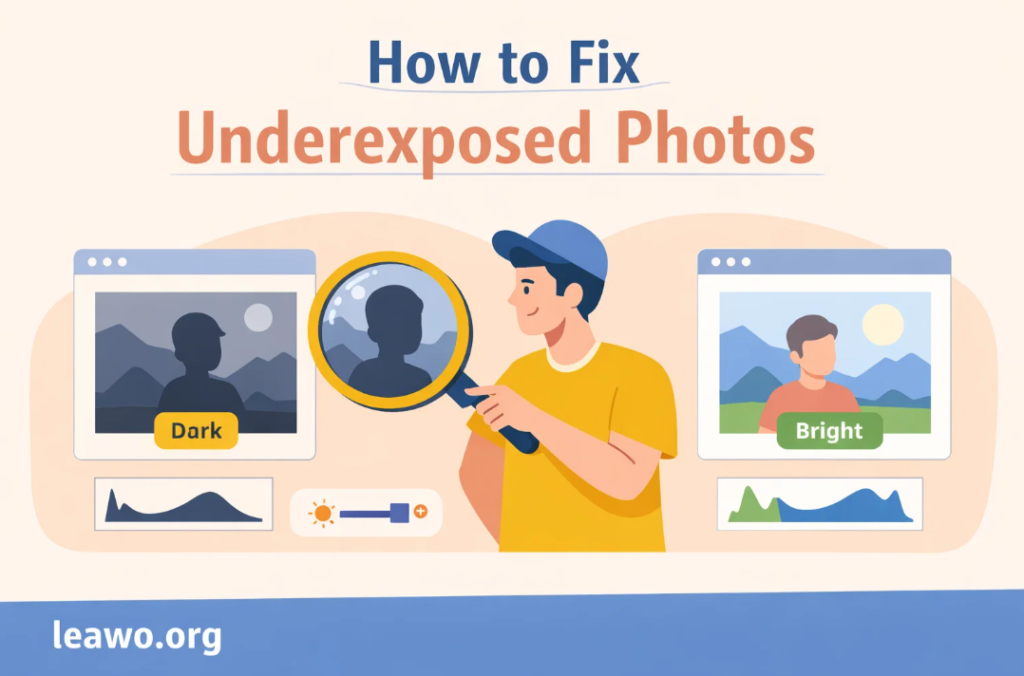
Have you ever taken what you thought was a perfect photo, only to find later that it looks too dark and lacks detail? An underexposed photo is one of the most common photography problems, affecting beginners and professionals alike. Whether it’s a portrait where facial features are lost in shadows or a travel photo where the scenery looks dull and lifeless, underexposure can significantly reduce the impact of an image.
The good news is that dark photos are often fixable. With modern photo editing software, mobile apps, and AI-powered tools, learning how to fix underexposed photos has become easier and more accessible than ever. In this article, we’ll explore why photos become underexposed, whether they can be corrected without losing quality, and step-by-step methods to brighten dark images using professional tools, AI solutions, and smartphones.
Common Causes of Underexposed Photos
Before learning how to fix dark photos, it helps to understand why underexposure happens in the first place. Some of the most common causes include:
1. Insufficient Lighting
Low-light environments such as indoor rooms, night scenes, or cloudy weather often lead to underexposed images if the camera doesn’t compensate properly.
2. Incorrect Camera Settings
Using a fast shutter speed, low ISO, or narrow aperture can limit the amount of light reaching the camera sensor, resulting in dark photos.
3. Backlighting
When your subject is positioned in front of a bright background—like a window or sunset—the camera may expose for the background and leave the subject too dark.
4. Metering Errors
Camera metering systems can misjudge complex lighting scenes, especially high-contrast environments.
5. Smartphone Limitations
Although modern smartphones are powerful, they can still struggle in challenging lighting conditions, producing underexposed results.
Understanding these causes will help you avoid underexposure in the future and make better decisions when editing your images.
Can You Fix Underexposed Photos Without Losing Quality?
One of the most common concerns photographers have is whether fixing underexposure will damage image quality. The answer depends on several factors.
If a photo is slightly underexposed, it can often be corrected with minimal loss of detail. Modern cameras capture a wide dynamic range, especially in RAW format, making it easier to recover shadows. However, severely underexposed images may show noise, color distortion, or banding when brightened too aggressively.
To minimize quality loss:
- Edit RAW files instead of JPEGs whenever possible
- Make gradual exposure adjustments
- Use noise reduction tools carefully
- Avoid pushing brightness beyond what the image can handle
With the right approach and tools, learning how to edit underexposed photos can deliver impressive results while preserving image quality.
How to Fix Underexposed Photos in Photoshop
Adobe Photoshop is one of the most powerful tools for fixing dark images. Here’s a practical workflow:
Step 1: Adjust Exposure and Shadows
Open your image and go to Image > Adjustments > Exposure. Increase the exposure slightly, then fine-tune the shadow slider to bring out darker areas without overexposing highlights.
Step 2: Use Levels or Curves
Levels and Curves give you precise control over brightness:
- Levels allow you to adjust highlights, midtones, and shadows using sliders
- Curves provide more advanced tonal control, ideal for restoring depth and contrast
Step 3: Dodge and Burn
Use the Dodge tool to selectively brighten areas such as faces or foreground objects. This method is especially useful when only part of the image is underexposed.
Step 4: Reduce Noise
Brightening dark areas often introduces noise. Apply noise reduction filters carefully to maintain sharpness.
Photoshop is ideal for users who want full control and precision when fixing underexposed photos.
How to Fix Underexposed Photos in Lightroom
Adobe Lightroom is a favorite among photographers for its intuitive interface and non-destructive editing.
Step 1: Increase Exposure
Use the Exposure slider to brighten the entire image. Make small adjustments to avoid overdoing it.
Step 2: Lift Shadows
The Shadows slider is crucial for underexposed photos. Increasing it reveals hidden details without affecting highlights too much.
Step 3: Adjust Blacks and Whites
Fine-tune contrast by setting black and white points. This helps restore depth after brightening the image.
Step 4: Use Tone Curve
The Tone Curve allows more refined brightness adjustments, especially useful for balancing midtones.
Lightroom is particularly effective for batch editing and works exceptionally well with RAW files.
How to Fix Underexposed Photos Using AI Photo Enhancers
AI-powered tools have transformed photo editing, making complex adjustments accessible to everyone. An AI photo editor can automatically analyze lighting, contrast, and color balance to correct underexposed images with minimal effort.
Benefits of AI-Based Editing
- Automatic brightness and exposure correction
- Reduced noise during enhancement
- Faster workflow for beginners and professionals
- Consistent results across multiple photos
Using Leawo Photo Enhancer
Leawo Photo Enhancer is a powerful AI-driven solution designed to fix dark and underexposed photos intelligently. It enhances brightness while preserving details and natural colors, making it ideal for users who want professional results without manual editing.
With AI tools like this, even heavily underexposed photos can be restored quickly, making them perfect for casual users, content creators, and photographers on tight schedules.
How to Fix Underexposed Photos on iPhone & Android
Mobile photography is more popular than ever, and thankfully, smartphones offer excellent tools for fixing dark photos.
Using Built-In Editing Tools
Both iOS and Android include basic photo editors:
- Adjust brightness and exposure
- Increase shadows
- Enhance contrast
These tools work well for mild underexposure.
Third-Party Apps
There are many mobile apps that specialize in photo enhancement:
- AI-based editors for automatic correction
- Manual editing apps for precise control
- Noise reduction and sharpening tools
Mobile apps are perfect for quick fixes and social media sharing, especially when you don’t have access to a computer.
How to Avoid Underexposed Photos in the Future
While editing is powerful, prevention is always better. Here are some tips to avoid underexposure when shooting:
1. Use Exposure Compensation
Increase exposure compensation in low-light or backlit situations.
2. Shoot in RAW
RAW files retain more data, making it easier to fix exposure issues later.
3. Check the Histogram
A histogram leaning too far left indicates underexposure. Adjust settings accordingly.
4. Improve Lighting
Whenever possible, add more light or reposition your subject.
5. Use Night or HDR Modes
Modern cameras and smartphones offer modes specifically designed for challenging lighting conditions.
By applying these techniques, you’ll reduce the need to fix underexposed photos in post-processing.
Conclusion
An underexposed photo doesn’t have to be a lost cause. With the right tools and techniques, learning how to fix underexposed photos can transform dark, dull images into vibrant, detailed visuals. From professional software like Photoshop and Lightroom to smart AI solutions such as Leawo Photo Enhancer, there are options for every skill level and workflow.
Whether you’re adjusting shadows manually, using an AI photo editor for instant results, or editing directly on your smartphone, fixing dark photos is now easier than ever. By combining proper shooting techniques with effective editing methods, you can ensure your photos look bright, clear, and visually engaging—no matter the lighting conditions.